Free Online Video Cutter
Trim videos up to 5GB with our free online video cutter. No watermark or sign-up.
Trim videos up to 5GB with our free online video cutter. No watermark or sign-up.

Max file size: 5GB
MP4, MOV, AVI, MKV, WebM & more
Use the video cutter to turn a longer recording into the section you need. Upload a file, choose a range, and save your edit.
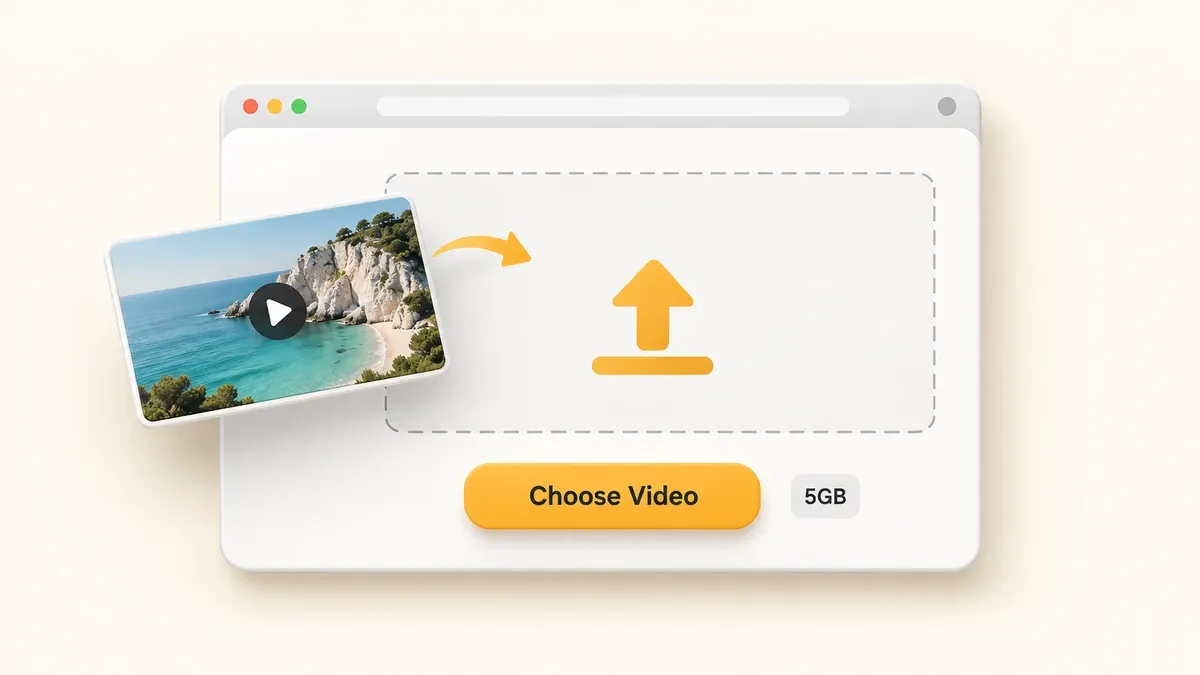
Choose a video from your device or drag it into the upload area. Files up to 5GB are supported, including MP4, MOV, AVI, MKV and WebM.
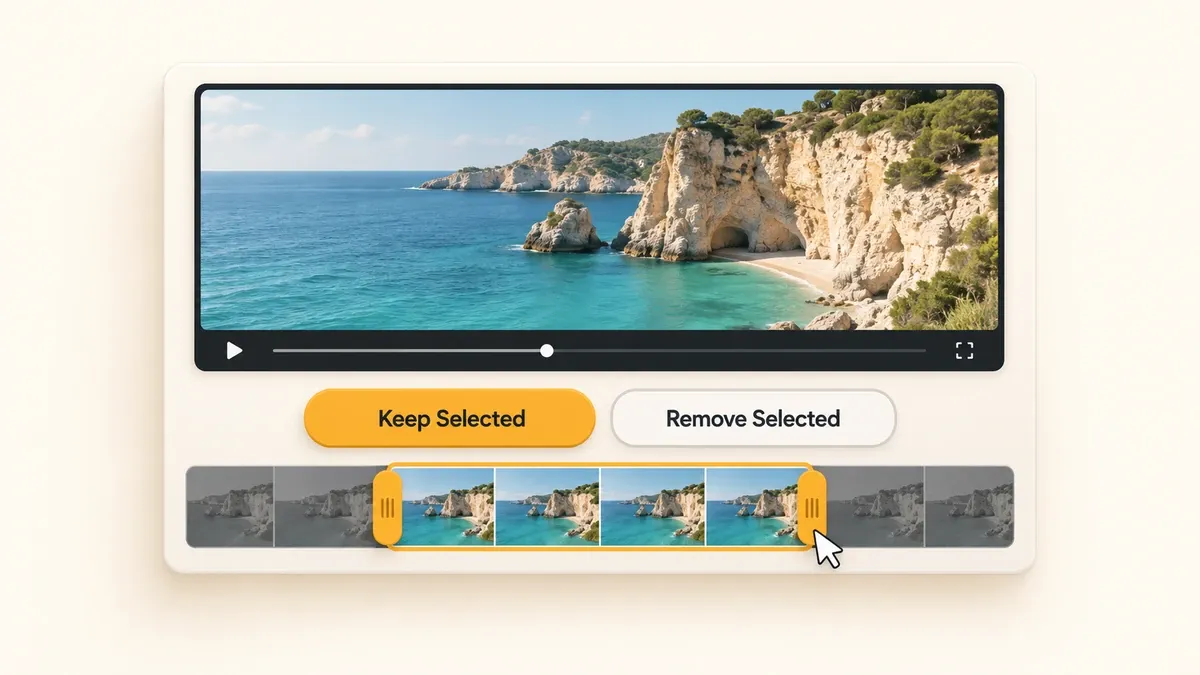
Drag the timeline handles or enter start and end times. Choose Keep Selected to save that range, or Remove Selected to cut it out and keep the rest.
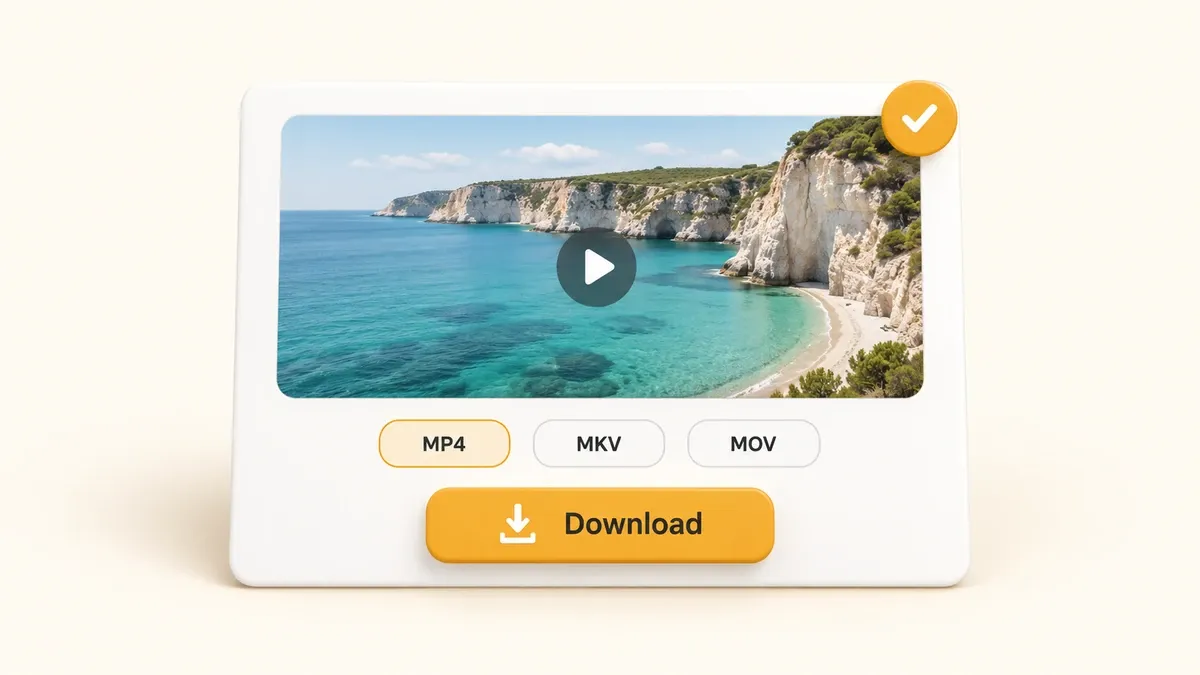
Select MP4, MKV or MOV, then click Export Video. Preview the result and download it, or return to the editor to adjust your selection.
Keep the part you want, remove what you don't need, and export in a format that fits your next step.
Start editing without creating an account or choosing a paid plan. The video cutter is free to use, including the export.
Upload a single video file up to 5GB, then select the section you want to keep. Useful for longer recordings and larger source files.
Your exported video comes without an added VideoBee logo or watermark, so you can use the clip in a post, lesson or presentation.
Use Keep Selected to save one section, or Remove Selected to cut it out. When you remove a middle section, the remaining parts join together.
The video cutter accepts MP4, MOV, AVI, MKV, WebM and other common formats. Choose MP4, MKV or MOV when you export.
Open the video trimmer in your browser and choose your file. There's no editing software or browser extension to install.
Use this video trimmer to make recordings easier to watch and share. Select the moment you want to keep, or remove a section viewers don't need.
Cut a Video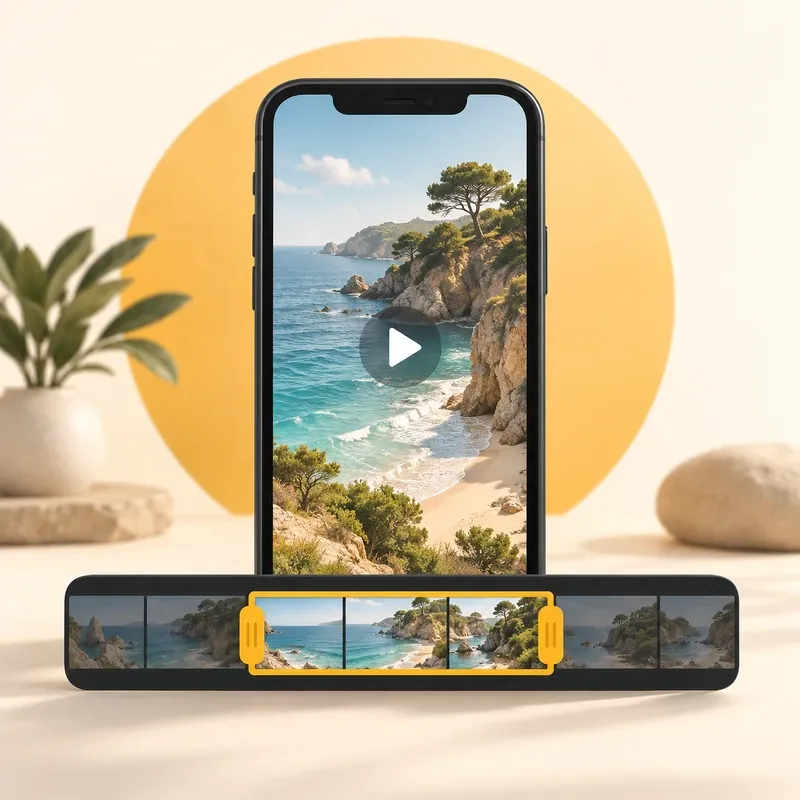
Use the video cutter to pull a focused clip from a longer recording. Trim away the lead-in and ending so your social post gets straight to the moment you want to share.

Cut out a stretch of waiting, an interruption or an off-topic section before sharing a meeting recording. Keep the material your team needs in one video.
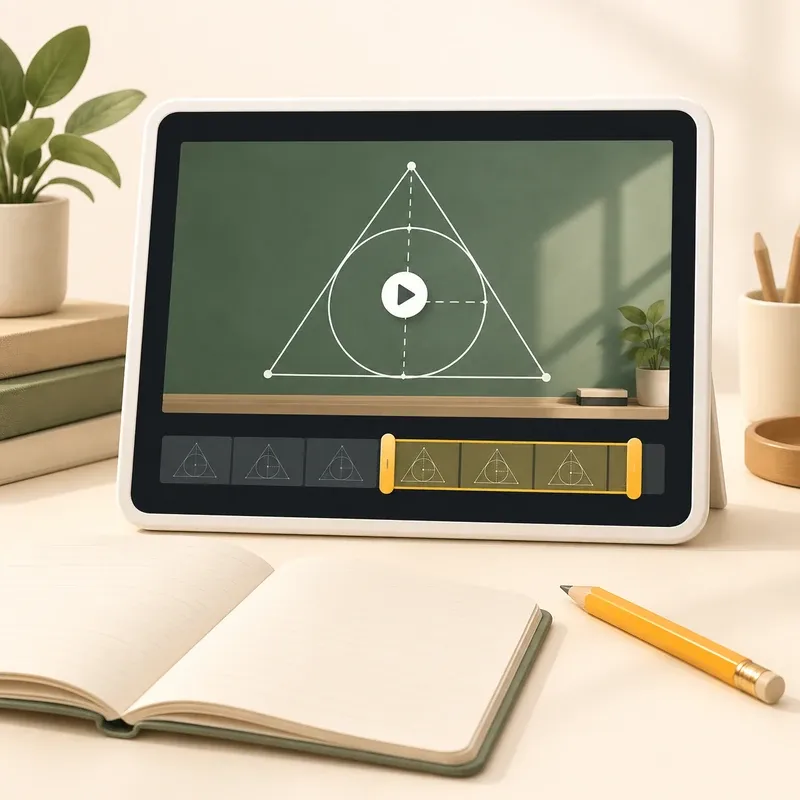
Use your lesson timestamps to trim video online. Enter the start and end times to keep that explanation, leaving out the setup and unrelated material.
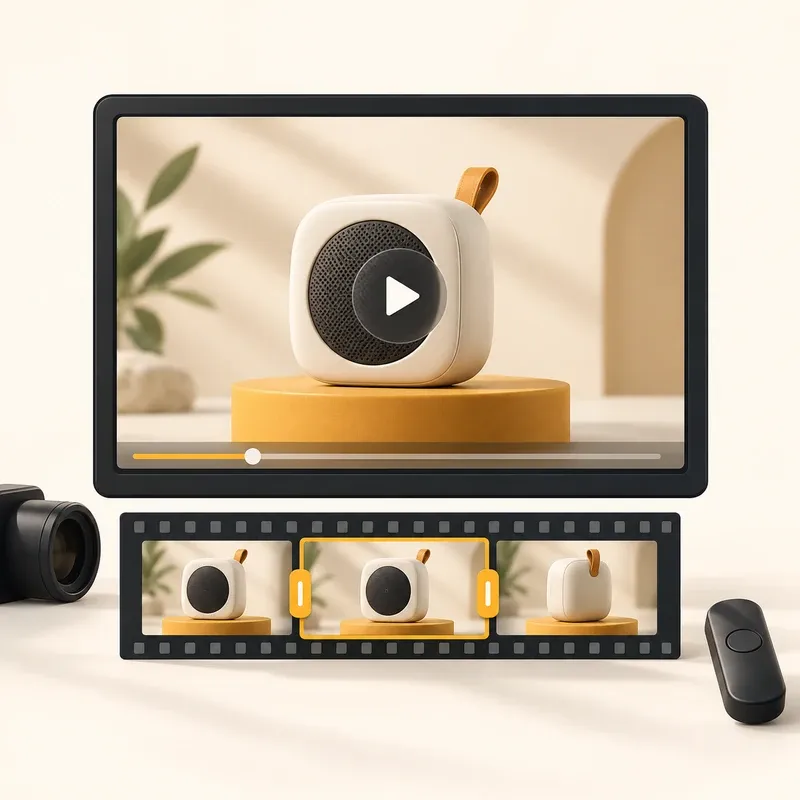
Use the video cutter to select a product demo, then export it as MP4, MOV or MKV. Choose the format your presentation software or next editing tool accepts.
Read their feedback on ease of use, editing controls and the final results.
I only needed 20 seconds from a much longer recording. Dragged the handles, checked the cut and downloaded it. Nice not having to make an account for that.

Alex Morgan
Freelance Content Creator
Our meeting recording had a long wait in the middle. I removed that section and sent the shorter version to the team. The rest stayed in one file.

Emma Patel
Project Coordinator
I already had the lesson timestamps written down, so entering a start and end time was easier than dragging through the whole recording.

Daniel Brooks
Online Tutor
Used this video cutter to trim a demo for a slide deck and export it as MP4. I checked the download before adding it to the presentation. No extra watermark.

Sophie Chen
Product Marketing Specialist
Find answers about using the video cutter, supported files and export options.