

- How We Compared These Tools (and What We Didn't Do)
- Quick Comparison: 8 Free Video Compressors at a Glance
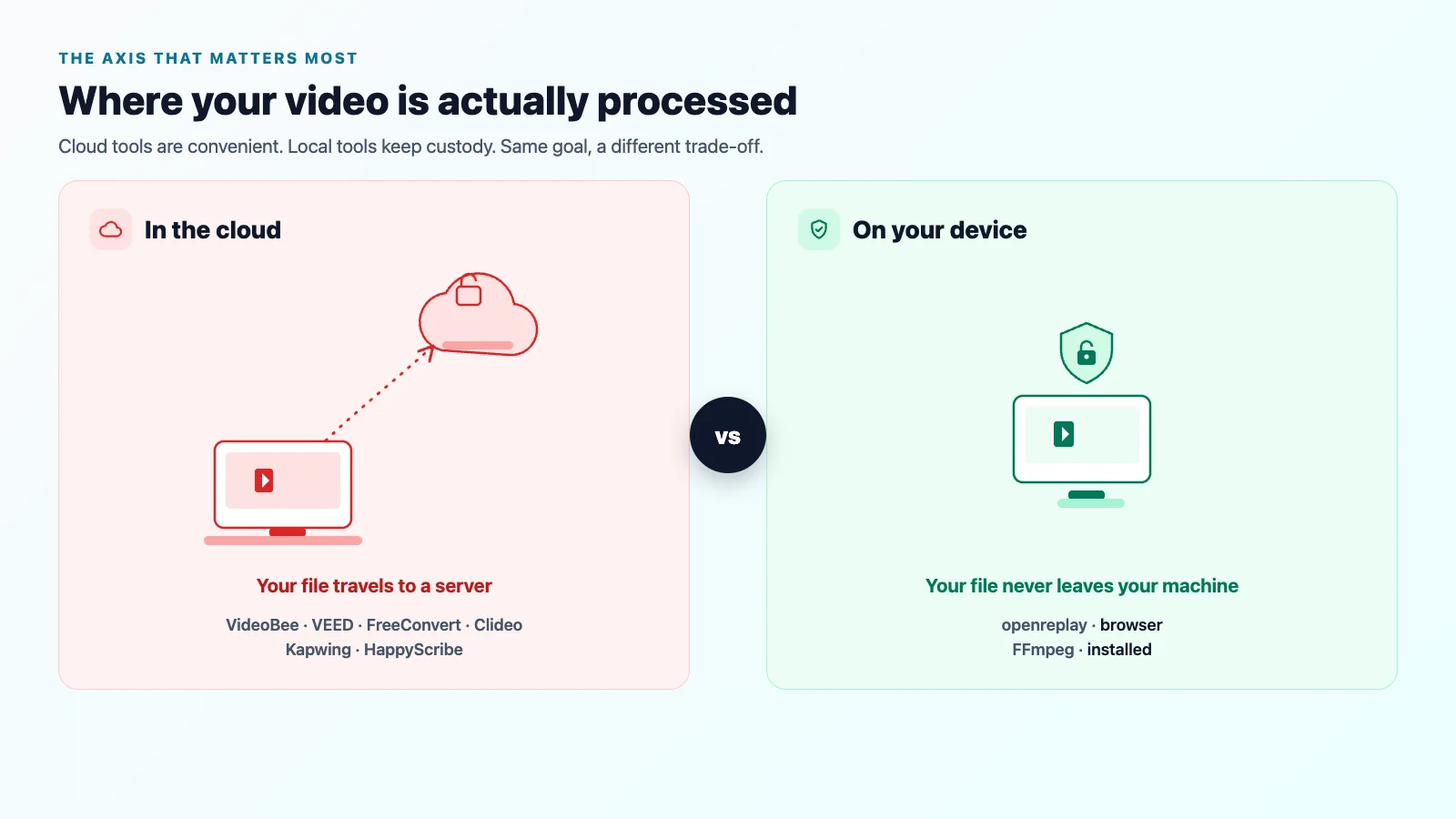
- The Axis That Matters Most: Where Your Video Is Processed
- The 8 Best Free Video Compressors for Hitting a Size Limit
- How to Choose a Target File Size
- Which Compressor Should You Use?
- Frequently Asked Questions
- Sources
The 8 Best Free Video Compressors for Hitting Any Size Limit: 10 MB, 25 MB, 500 MB (2026)
The real problem isn't which of the best free video compressors wins. It's the portal that says "50 MB limit" while your export reads 214 MB. You need it under the cap, not just smaller.
Disclosure: VideoBee is our own tool, and it's in the list below. That's exactly why we didn't rank these with a score we invented — every spec comes from each tool's own site, checked 16 September 2026, and you can verify any cell yourself.
The catch most roundups miss: not every compressor lets you type the number you're aiming for. Plenty hand you a quality slider and leave the size to chance.
Of the eight free compressors we checked, one takes an absolute target in MB, two show a live size estimate as you drag — so you can steer toward your limit without typing a number — one works in percentages of your original file, three give you a quality or compression level to pick from, and one asks you to do the bitrate arithmetic yourself.
Below is a target-size-to-bitrate cheat sheet, so any limit can be worked out by hand.
How We Compared These Tools (and What We Didn't Do)
What we didn't do
We ran no lab benchmark. No VMAF scores, no identical machine, no shared source clip processed for a comparison chart. We didn't "test" the tools against each other — that would measure our clip more than your file.
What we did
We compared each tool on three axes: can it take a target size from you at all? What does the free tier allow — file limit and watermark? Where does your video get processed? Every figure comes from each vendor's own official page, checked 16 September 2026; free policies shift, so confirm before relying on one. The spread is the point: the target-size modes break down as 1 / 2 / 1 / 3 / 1.
Why eight, and not twenty
We included a tool only if it can help you hit a number, or if it's representative of a common approach. While checking one tool, we found its free file-size limit stated three different ways across sources — one of them on a second domain owned by the vendor itself. We settled it only by going to the tool's own page, which is why every table cell quotes the vendor's page with the date. Three things we left out: vendor leaderboards that crown themselves first; tools we couldn't verify on their own page; and anything paid-only.
Quick Comparison: 8 Free Video Compressors at a Glance
| # | Tool | Target size mode | Where it runs | Max free file size | Watermark on free | Sign-up | Best for |
|---|---|---|---|---|---|---|---|
| 1 | VideoBee | Yes — type the target MB | Cloud — file is uploaded | Up to 10 GB | No | Not required | Hitting an exact target size |
| 2 | VEED | Live size estimate — no input field | Cloud — file is uploaded | 1 GB | Yes | Not required | Files up to 1 GB with a live MB readout |
| 3 | FreeConvert | Percentage of original — no MB field | Cloud — file is uploaded | 1 GB | No | Not required | Big free files + format breadth |
| 4 | Clideo | Live size estimate — no input field | Cloud — file is uploaded | 500 MB | Yes | Not required | Quick one-off under 500 MB |
| 5 | Kapwing | No — compression-level slider, no MB field | Cloud — file is uploaded | 2 GB (4 min / 720p / 30 min-per-month export limit) | Yes | Not stated | Already editing in Kapwing |
| 6 | openreplay | No — quality target only (optional resolution drop) | Browser — never uploaded | Not stated | No | Not required | Just smaller, no number in mind |
| 7 | HappyScribe | No — -30 / -50 / -70% presets only | Cloud — file is uploaded | Not stated | No | Not required | Compression + transcription |
| 8 | FFmpeg | Manual — -b:v with two-pass | Installed app | No limit | No | Not required | Automation, scripting |
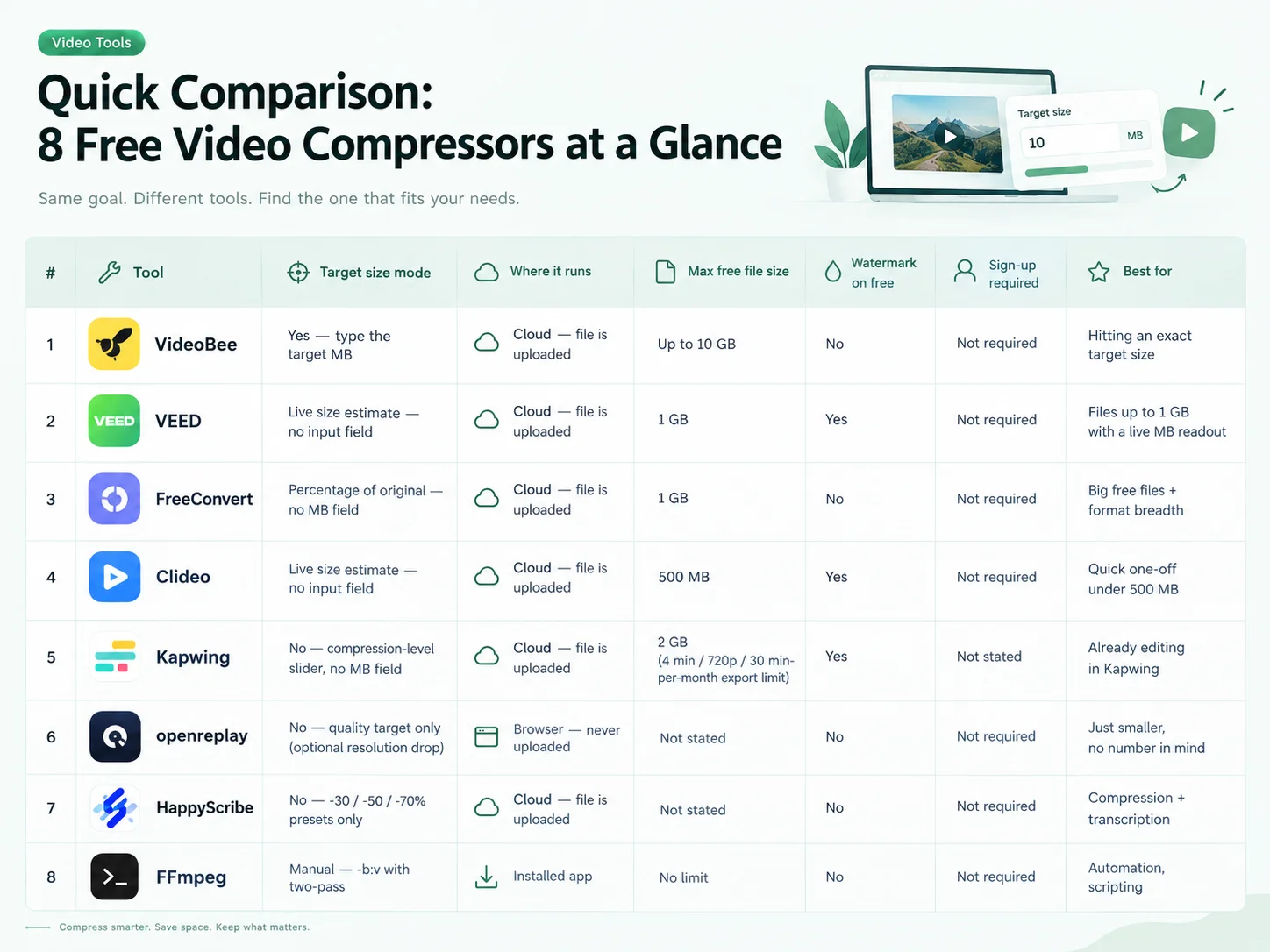
Read the first column like this: one tool takes an absolute MB, two show a live estimate as you drag, one works in percentages of the original file, three only give a quality level, and one makes you do the math. The "Where it runs" column is a neutral fact, not a score. Specs were checked 16 September 2026; free tiers change, so treat this as a re-verifiable snapshot.
The Axis That Matters Most: Where Your Video Is Processed
Tools that keep the file on your device
Two tools run locally. openreplay compresses in your browser (a Web Worker, nothing leaves the machine), and FFmpeg is software you install and run yourself. Neither publishes a hard file limit — and that's the honest answer, because the ceiling is your own device: its memory, CPU, battery. openreplay's spec sheet literally lists "Max free file size" as "Not stated," which tells you everything. Local tools have no upload cap, but they have a you-cap.
Tools that process video in the cloud
The other six upload your file to a server and hand back the result. The upside is real: no install, and you can process a big file from a phone. The cost is that the video travels. A compressor that uploads is not automatically unsafe, and one that runs locally is not automatically better at compressing. It's a trade between convenience and custody. When the footage is sensitive — unreleased client work, private recordings, anything legal or medical — openreplay (browser) or FFmpeg (installed) keep it on your side of the line.
The 8 Best Free Video Compressors for Hitting a Size Limit
1. VideoBee — Best for hitting an exact target size
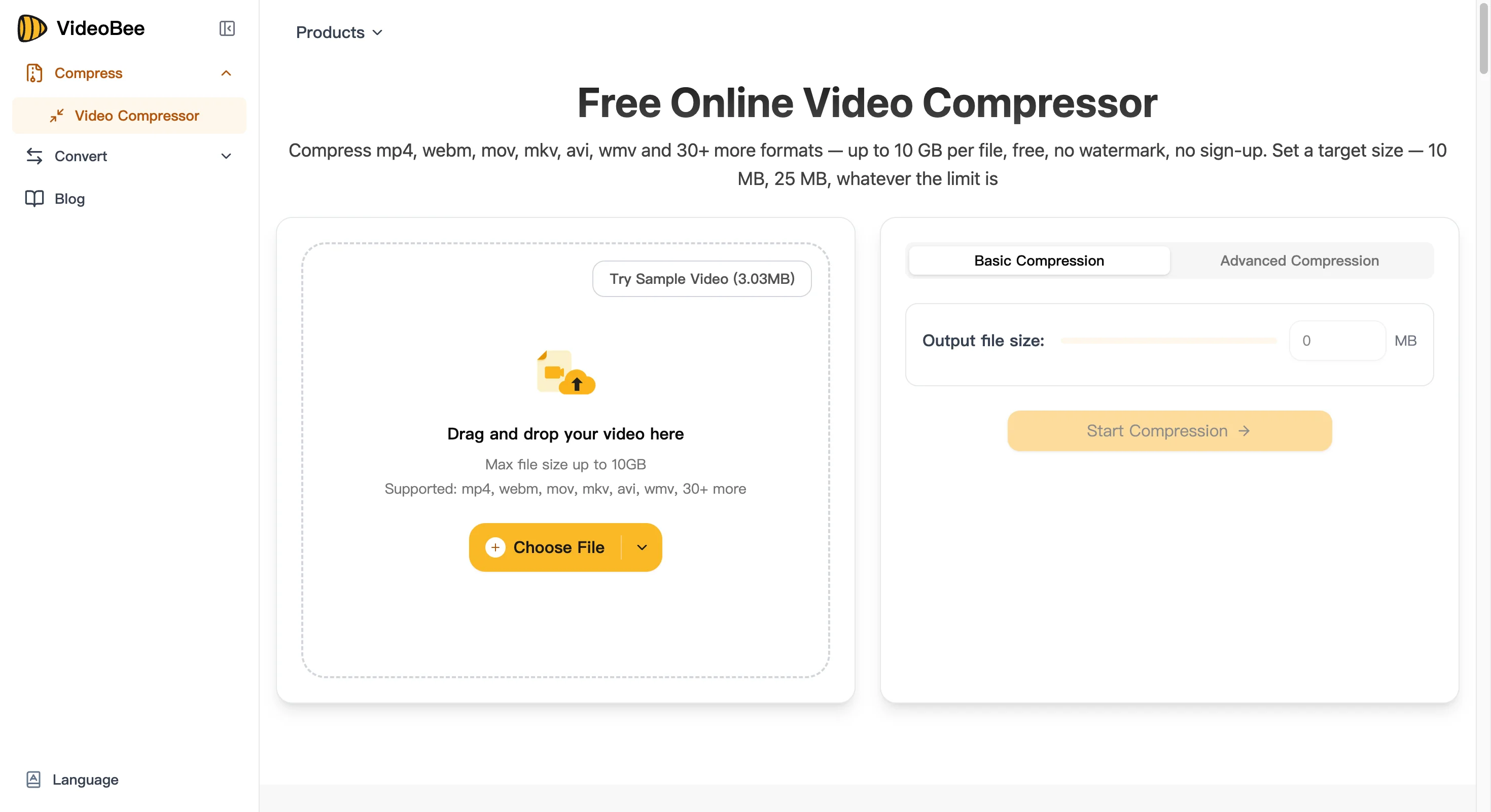
VideoBee is a cloud compressor built around one question: how small do you need it? In Basic mode you type the target — 10 MB, 25 MB, 500 MB, or your limit. Strong mode pushes harder; Advanced opens custom quality, resolution, max bitrate, codec and speed, with an estimated size shown before download.
Specs: up to 10 GB per upload; MP4 (H.264/H.265) with AAC audio; 12 resolution presets from 144p to 8K; import from computer, Google Drive, Dropbox or a video link. Free, no watermark, no sign-up. Cloud — file is uploaded and deleted within 24 hours, not used for AI training.
Downsides: it requires an upload (openreplay or FFmpeg keep sensitive files local); no batch mode; results vanish after 24 hours. Run a file through the free online video compressor when you already know the exact number.
How to compress to a target size in VideoBee (3 steps)
The steps below work for any clip where you already know the number:
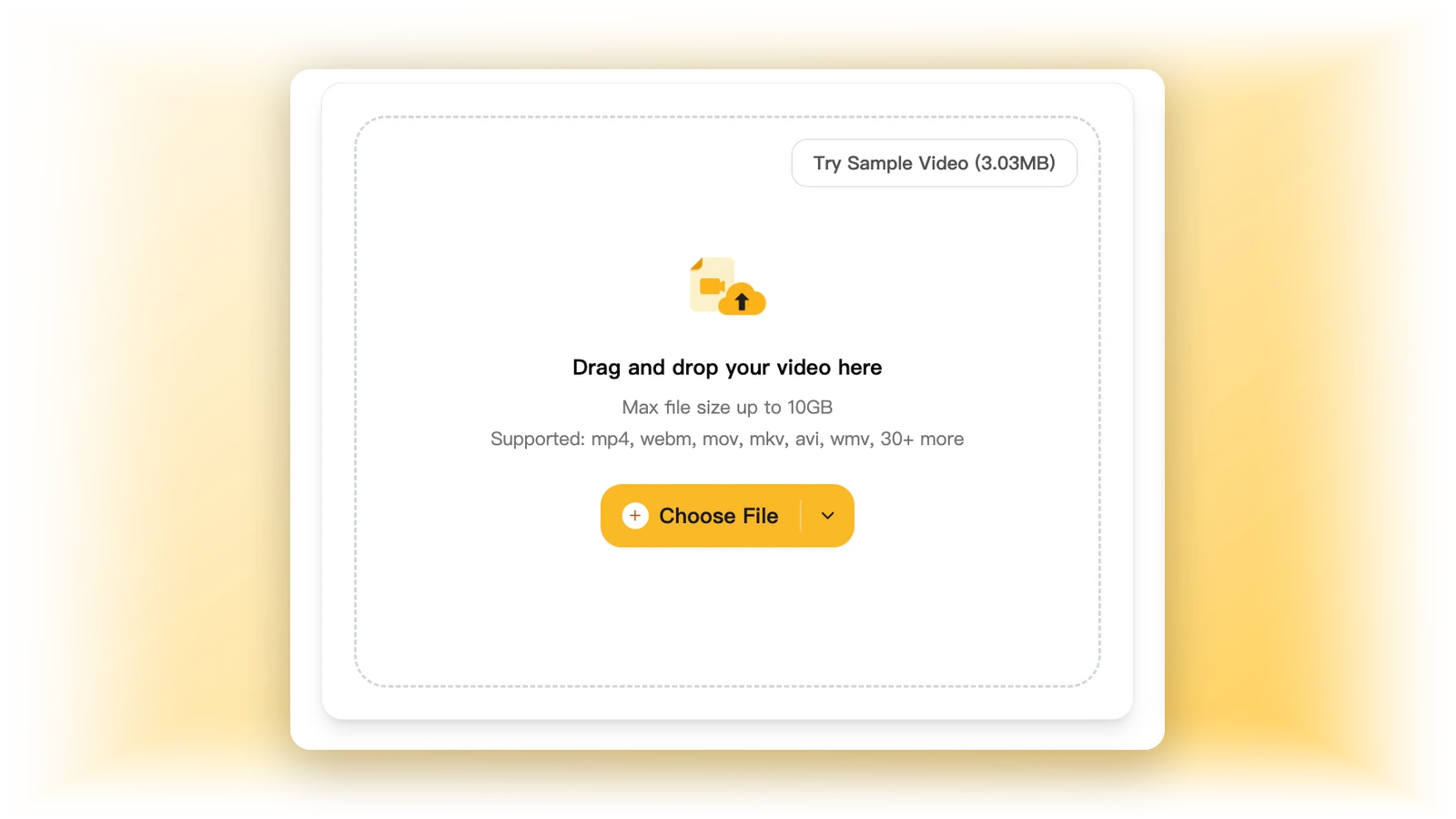
1. Upload. Drag your video into VideoBee, or paste a Google Drive, Dropbox, or direct link. Compressed files up to 10 GB are accepted, and no sign-up is required.
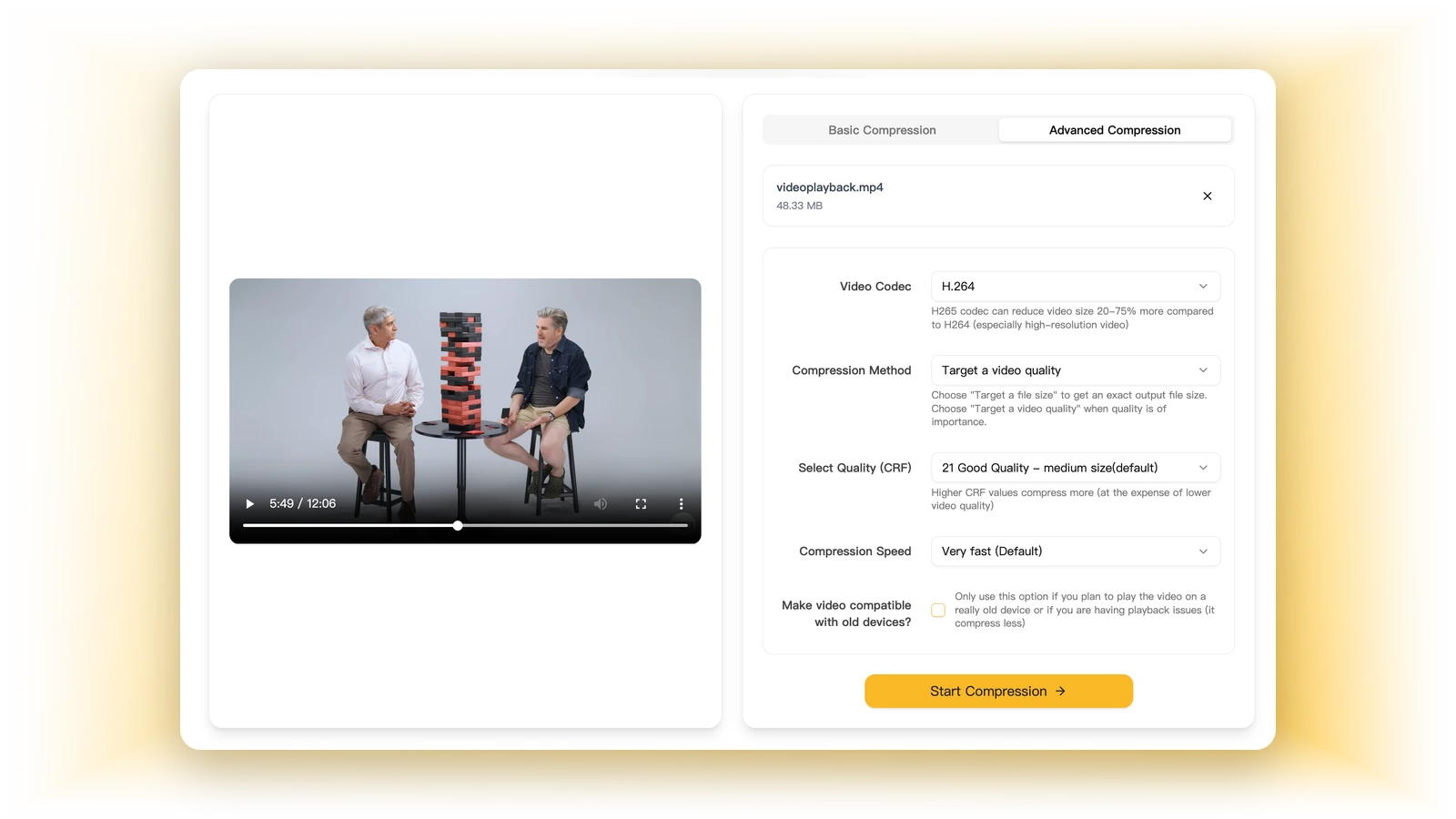
2. Set the target. In Basic mode, type the exact size you need — 10 MB, 25 MB, 500 MB, or your portal's limit. Strong mode pushes harder; Advanced opens custom resolution, bitrate, codec and speed, and shows an estimated size before you download.
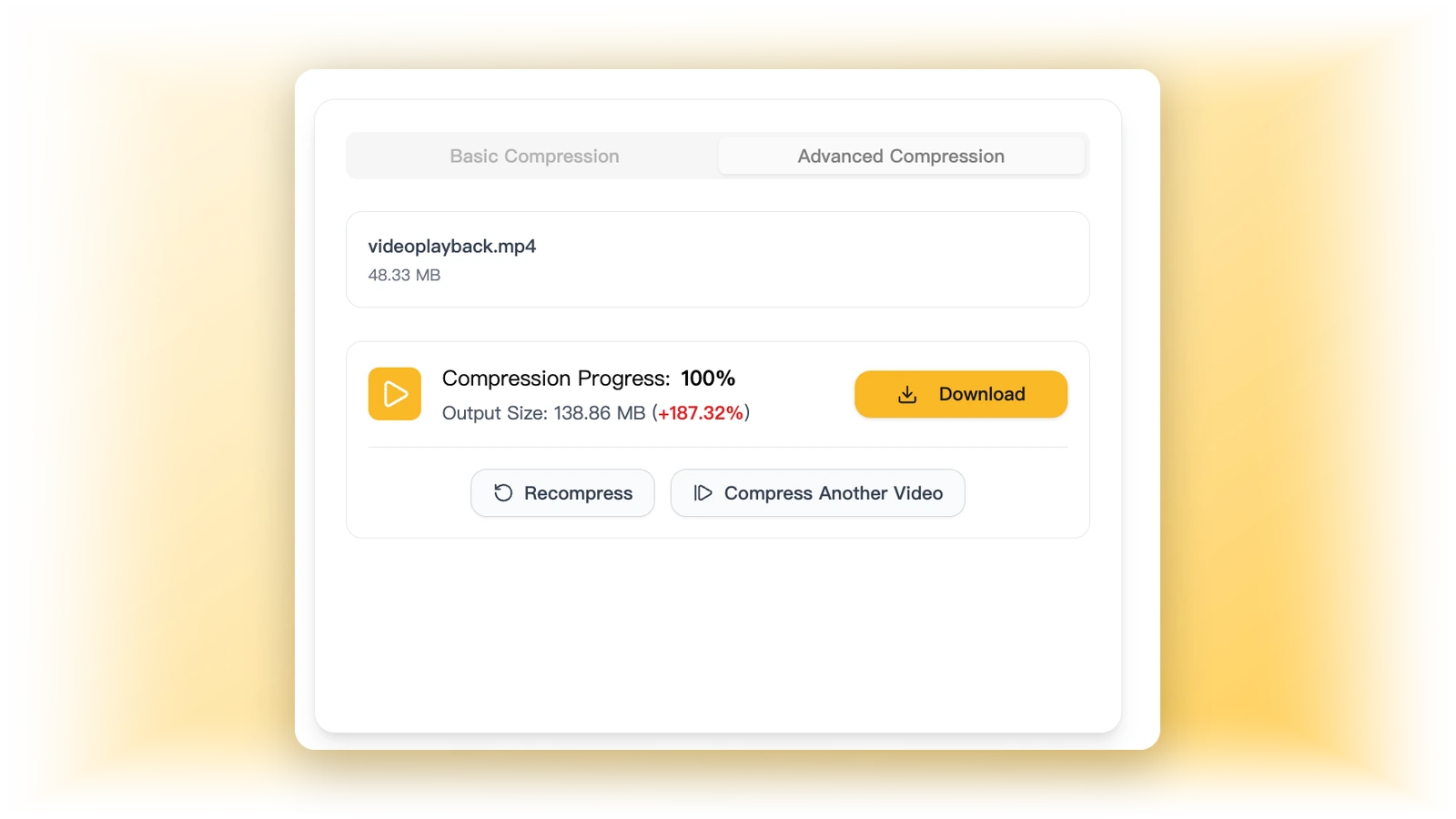
3. Download. Save the smaller file. It lands close to — not exactly on — your target, so enter about 5–8% under a hard cap (see the cheat sheet). The result is deleted after 24 hours.
2. VEED — Best for files up to 1 GB with a live MB readout
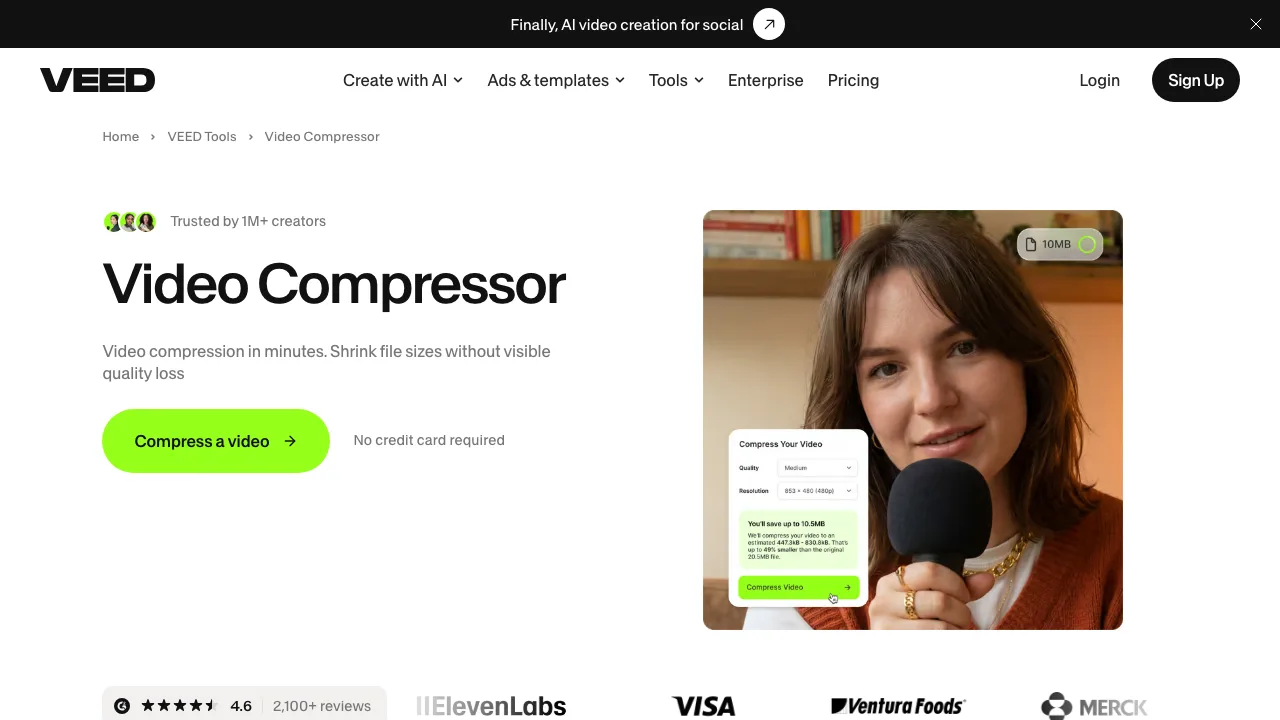
VEED is an online editor that also compresses, with a free tier up to 1 GB taking MP4, MOV, MKV, AVI and YouTube links.
You can't type a target size, but you can read the number. VEED's FAQ says it shows "real-time file size estimates (in MB) as you select different options." For tighter control, Advanced Settings let you change resolution or bitrate directly. The practical path is to drag the compression slider until the estimate drops under your limit, then export.
Cloud — file is uploaded.
Downsides from their FAQ: free exports carry a watermark; the 1 GB free cap; and there's no MB input field, so you steer by dragging rather than typing. Best for files up to 1 GB where you want to watch the readout as you dial it in.
3. FreeConvert — Best free online for files up to 1 GB
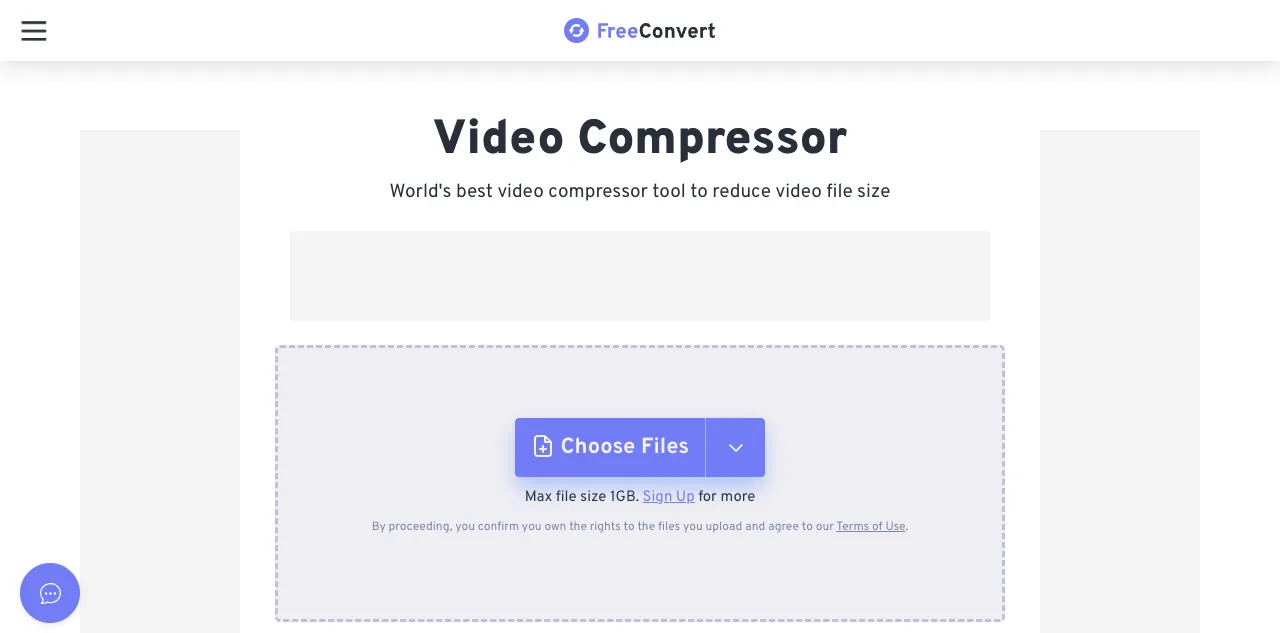
FreeConvert runs a free tier up to 1 GB with no watermark and a wide format list (30+ types), and you can pick H.264 or H.265.
The catch on target size: you can't enter an absolute MB value. Its control reads "Target Size (%)" — "a percentage (0–10000%) of the original." You tell it "25%" and work out the math yourself; you can't say "25 MB." Other modes include CRF, max bitrate and resize.
Cloud — file is uploaded.
Downsides: target size is percentage only, never an absolute number; the free tier has a daily-use cap; busy periods can queue; and the page carries ads.
4. Clideo — Best for a quick one-off under 500 MB

Clideo is a one-stop toolkit that includes compression, and it's the quickest to start — no sign-up.
You can't type an MB target. Instead there's a compression-rate control plus a live size estimate: its FAQ says Clideo "shows size estimates and compression rates before compressing and downloading." Pick a rate and watch the expected size above the pane.
Cloud — file is uploaded.
Downsides, all from their pages: free files are capped at 500 MB; free exports carry a watermark (premium removes it); and the best "Superb" preset is for Clideo Pro subscribers. Best for a fast one-off under 500 MB where a watermark is acceptable.
5. Kapwing — Best if you're already editing in Kapwing
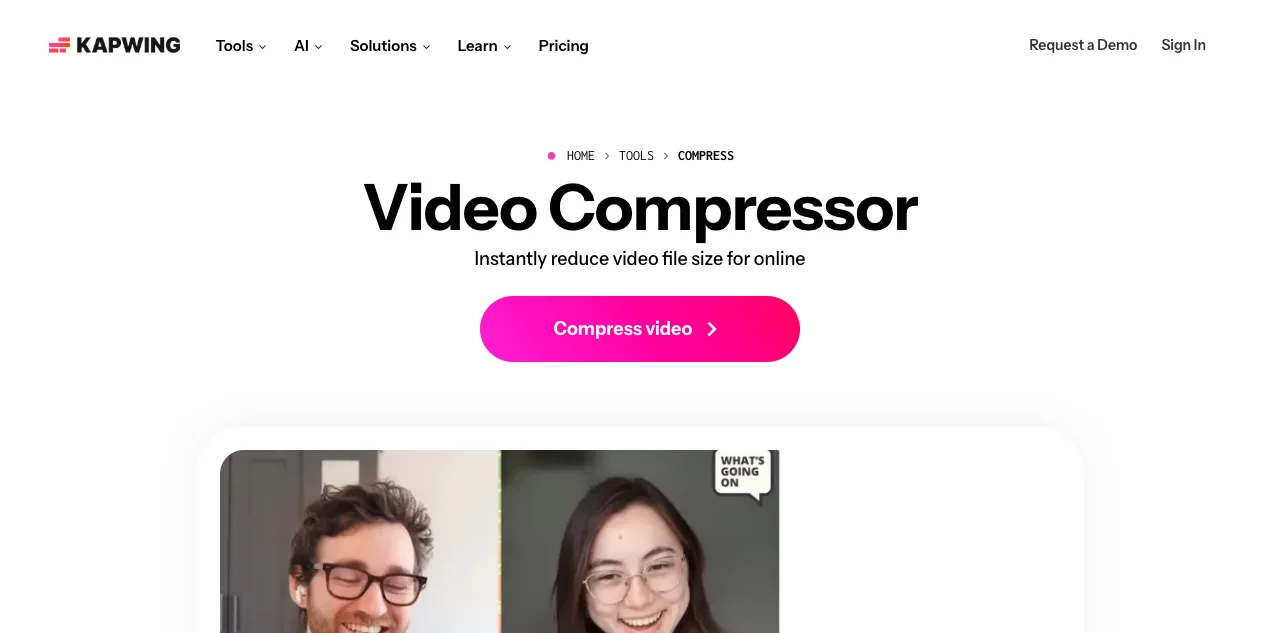
Kapwing is an online editor with compression built in, handling MP4, MOV, AVI, WebM, WMV and more, and you can load several files at once.
You can't set a target size. Kapwing's own steps say to click "Export project" and adjust the "video compression level slider" — a slider, not an MB box.
The free tier's standout is a 2 GB upload limit — among the highest in this list.
Cloud — file is uploaded.
Downsides, all from Kapwing's pages: every free export carries a watermark; exports max out at 4 minutes; quality is capped at 720p; the monthly export allowance is 30 minutes; and there's no MB input. Whether an account is required to export isn't stated on Kapwing's own pages, so we left that cell blank. Best for clips you're already editing in Kapwing and want to shrink on the way out.
6. openreplay — Best for just smaller, no number in mind
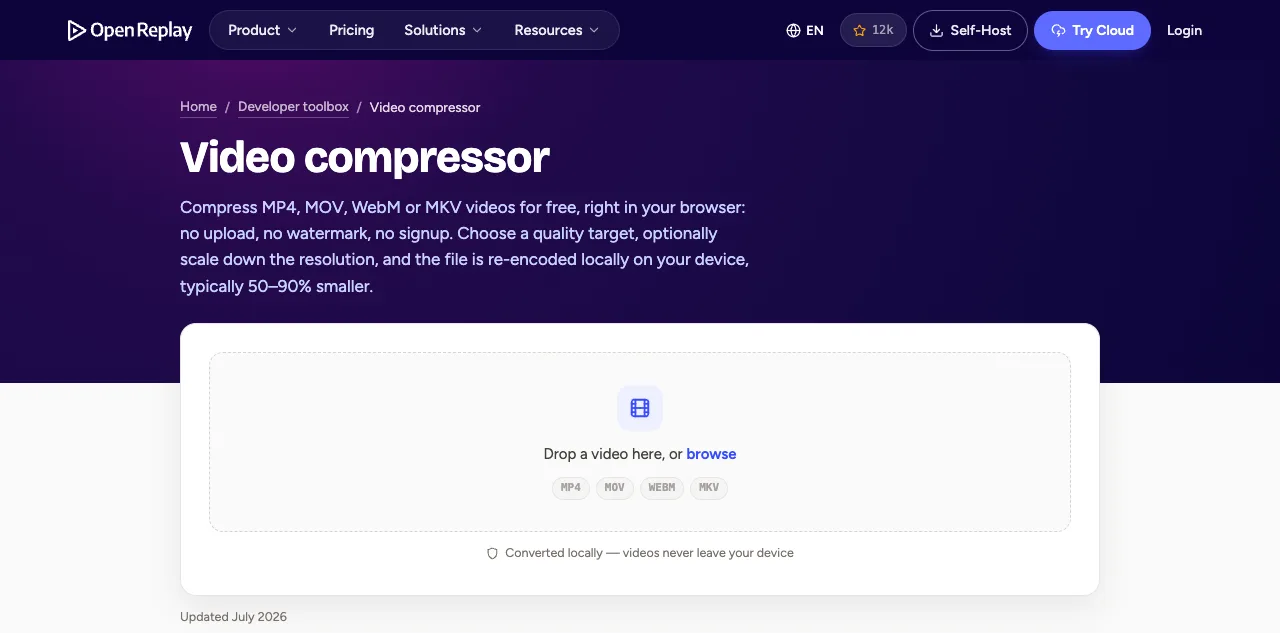
openreplay's compressor runs entirely in your browser. Its page says plainly: "Videos are never uploaded" — compression happens in a Web Worker on your device. It was updated July 2026.
You pick a quality target and it computes a bitrate from resolution and frame rate, with an optional resolution drop. Typical results land 50–90% smaller.
Downsides: it accepts only four containers — MP4, MOV, WebM, MKV — so no AVI or WMV; and there's no MB box and no size estimate shown, just quality tiers, so hitting an exact number isn't possible. Best for when you just want it smaller, have no specific number, and don't want the file to leave your machine.
7. HappyScribe — Best if you also need a transcript
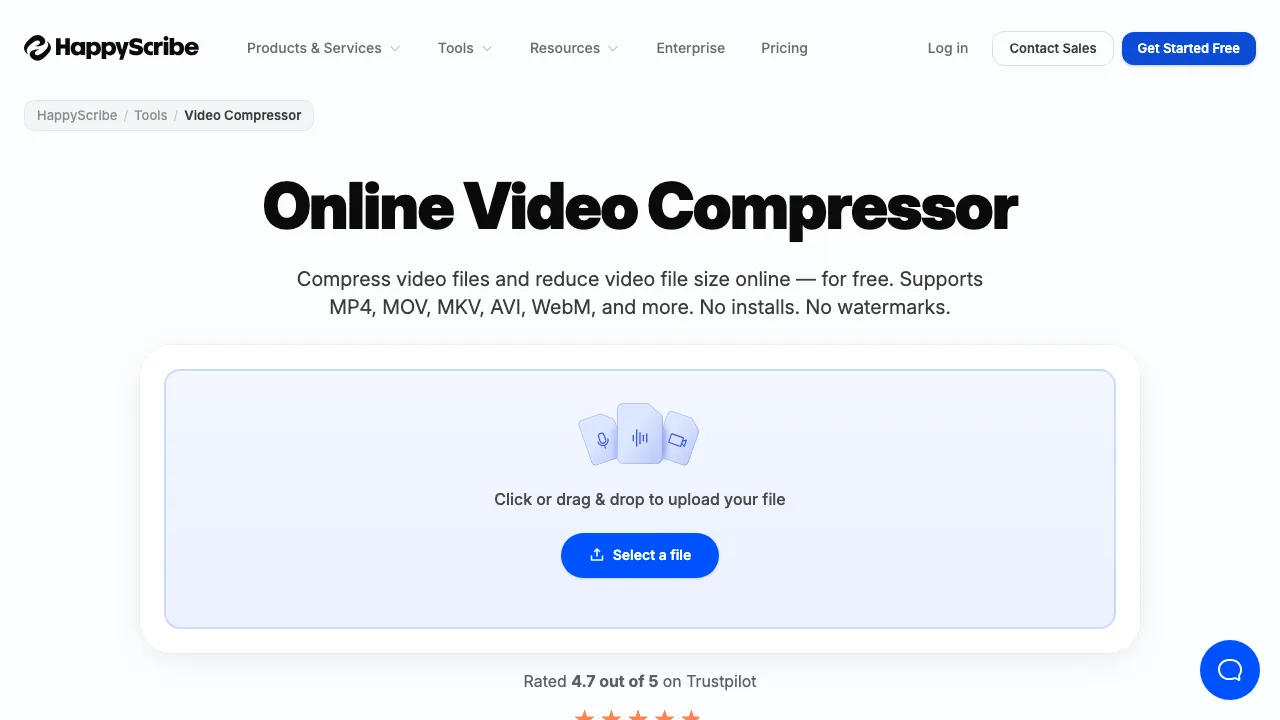
HappyScribe, known for transcription, also offers a compressor — no sign-up, no watermark. It takes MP4, MOV, MKV, AVI, WebM, FLV, WMV, MPEG, 3GP, M4V and more.
Cloud — file is uploaded: you drag into the upload area, files are deleted after processing over 256-bit SSL. (Its page also says "right in your browser," but the actual flow uploads the file — don't be misled.)
You can't enter an exact output size; you choose Smallest (−70%), Best balance (−50%) or Best quality (−30%). HappyScribe's own page points exact-size seekers to Flippy, a separate free tool from their team, for targets like 8 MB.
Downsides: no precise size input; and its free file-size ceiling isn't published on the page, so we left it blank. Best for when you also need a transcript alongside the smaller file.
8. FFmpeg — Best for automation and scripting
FFmpeg is the command-line engine behind a lot of the above. It's installed software, fully controllable, and there's no file-size ceiling — your hardware is the limit.
To hit a target, you set -b:v with a two-pass encode and compute the bitrate yourself (the formula is below).
Downsides: no graphical interface, some command-line comfort required, no "enter MB" box, and you do the bitrate math. Best for batch jobs, scripts, or any local automation where you'd rather write a loop than open a website.
How to Choose a Target File Size
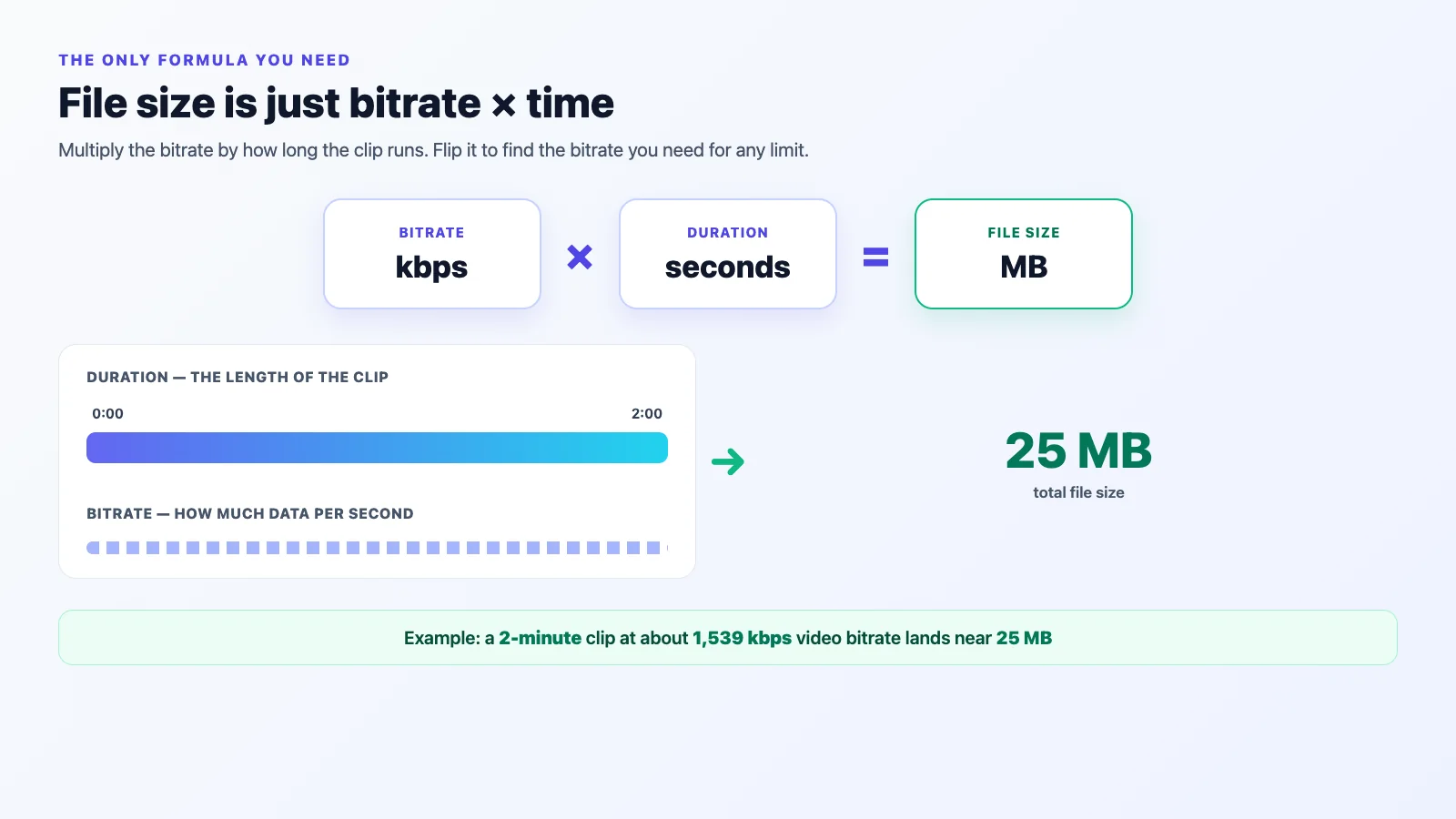
The only formula you need: size ≈ bitrate × duration
File size is just bitrate multiplied by how long the video runs. Flip it to find the bitrate you need:
video bitrate (kbps) = (target MB × 8,000) ÷ seconds − audio bitrate
The ×8,000 turns megabytes into kilobits (a byte is 8 bits, per Wikipedia's definition of a byte), and we reserve about 128 kbps for stereo AAC audio — roughly 1 MB per minute. So a 25 MB, 2-minute clip leaves you around 1,539 kbps for video. This is the same arithmetic HandBrake's documentation leans on when it warns that output size from a given setting "is unpredictable and varies from source to source" — which is why a target number beats a quality guess.
Target size → bitrate cheat sheet
Assuming H.264 video with stereo AAC at 128 kbps (audio already subtracted):
| Target size | 30 s | 1 min | 2 min | 5 min | 10 min |
|---|---|---|---|---|---|
| 10 MB | 2,539 | 1,205 | 539 | 139 | — |
| 25 MB | 6,540 | 3,205 | 1,539 | 539 | 205 |
| 50 MB | 13,205 | 6,539 | 3,205 | 1,205 | 539 |
| 100 MB | 26,539 | 13,205 | 6,539 | 2,539 | 1,205 |
| 500 MB | — | — | — | 13,205 | 6,539 |
Units are kbps. A dash means the bitrate is either absurdly high or so low the picture falls apart. We cross-checked the 25 MB / 2 min cell (1,539 kbps) against two public bitrate calculators and got the same number.
Always aim below the cap
Why not land exactly on the limit? Bitrate is a rate, not a byte-precise promise — encoders estimate. The container and metadata add overhead. And an email limit counts the whole message, not just your attachment, as Google's Gmail help center notes with its 25 MB ceiling.
Rule of thumb: enter about 5–8% under the hard limit.
| Real limit | Enter this |
|---|---|
| 10 MB | 9 |
| 16 MB | 15 |
| 20 MB | 18 |
| 25 MB | 23 |
| 50 MB | 47 |
| 100 MB | 95 |
| 500 MB | 480 |
This isn't our guess. A tool that does MB targeting, Your File Tools, tells its own users in its FAQ: "the result lands close to but not precisely on the target. If you have a hard limit, pick a slightly lower target for headroom." Same advice, from a different corner.
Which Compressor Should You Use?
| If your target is… | Use |
|---|---|
| Under 10 MB (chat upload limit) | VideoBee (Basic) · VEED |
| Under 16 MB (messaging apps) | VideoBee (Basic) · VEED |
| Under 20–25 MB (email attachment) | VideoBee (Basic) · VEED |
| 25–500 MB (submission portal, LMS) | VideoBee (Basic) |
| 1 GB – 10 GB | free online video compressor |
| You'd rather set a rate than a number | FreeConvert · Clideo |
| A file up to 2 GB for a short clip | Kapwing |
| No fixed number — just smaller | openreplay · HappyScribe · VideoBee (Strong) |
| Sensitive or confidential footage | openreplay (browser) · FFmpeg (installed) |
| Dozens of files at once | FFmpeg |
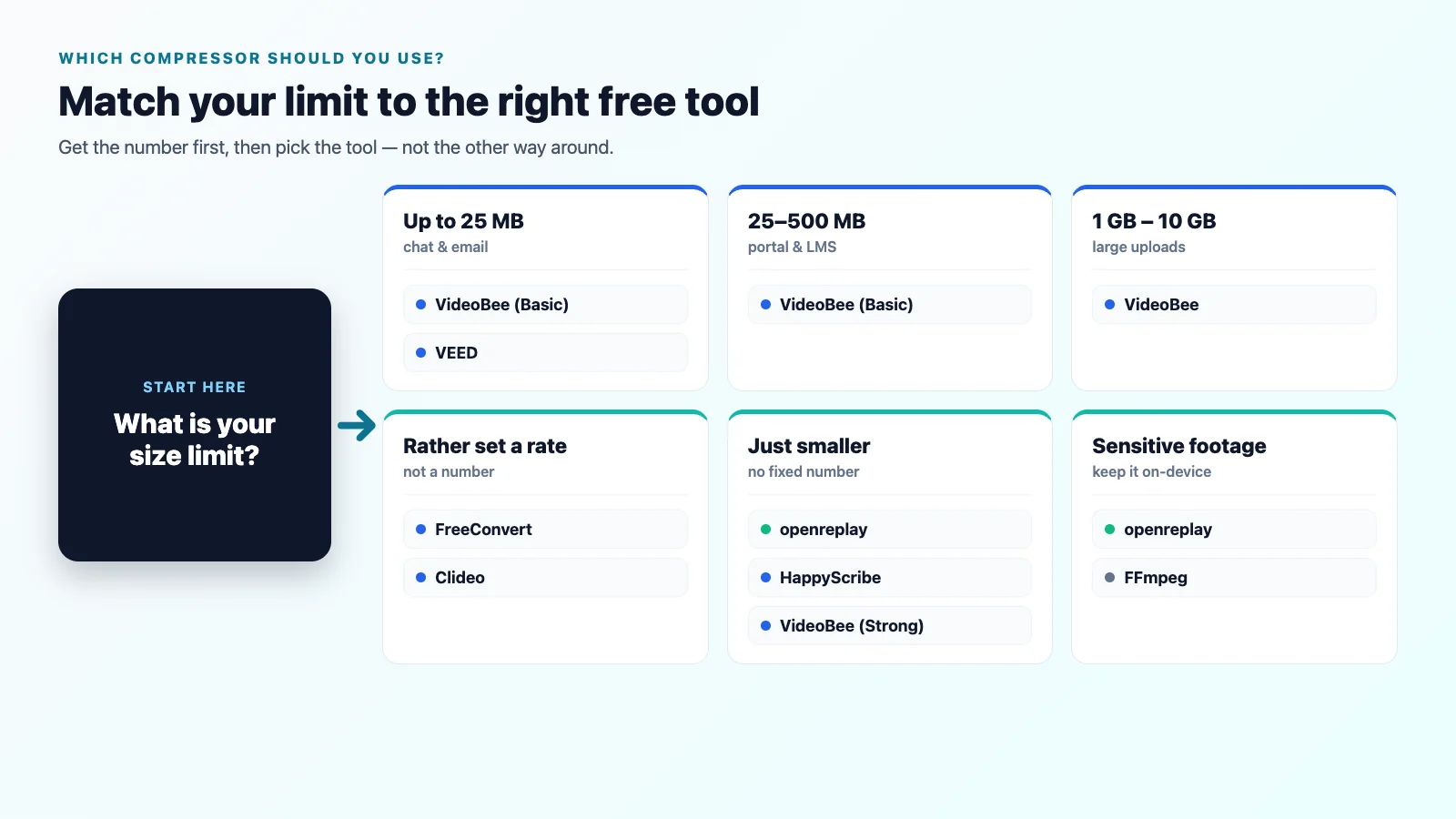
Get the limit number first, then pick the tool. For Discord, their official help center states the file is measured before any compression — in their words, "the number you see is the number that counts" — with 20 MB free, 50 MB on Nitro Basic and 500 MB on Nitro (as of August 2026). When footage is sensitive, don't trade custody for convenience; openreplay or FFmpeg keep it local. The top three rows point to VideoBee and VEED because both let you watch the size as you go — Clideo also shows a live estimate, but its free exports carry a watermark, which isn't what you send a client.
Frequently Asked Questions
Can I compress an AVI or WMV file online?
Yes. Several on this list take AVI and WMV: VideoBee, FreeConvert, Kapwing, HappyScribe and FFmpeg all list them among supported inputs. openreplay is the exception — it handles only MP4, MOV, WebM and MKV, so AVI and WMV need a different tool.
What is the best free video compressor without a watermark?
Across the free tiers we checked, VideoBee, FreeConvert, openreplay and HappyScribe all export without a watermark. VEED, Clideo and Kapwing apply one to free exports, and FFmpeg naturally doesn't add one since you control the encode.
How do I compress a video to 25 MB for email?
Start from the cheat sheet: a 2-minute clip needs about 1,539 kbps video bitrate, a 5-minute one about 539 kbps. Enter 23 MB rather than 25 to leave headroom for the container and the rest of the message, since Gmail's attachment ceiling is 25 MB for the whole email. VideoBee's Basic mode lets you type 23 MB directly; VEED lets you drag to the estimate.
What bitrate do I need for a 10 MB or 500 MB file?
For 10 MB: roughly 539 kbps at 2 minutes, 139 kbps at 5 minutes. For 500 MB: about 13,205 kbps at 5 minutes, 6,539 kbps at 10 minutes. Those figures assume H.264 with 128 kbps stereo audio already subtracted — see the full table above and adjust for your clip's length.
Is it safe to upload a video to an online compressor?
It depends on the file. Cloud tools process your video on their servers, which is convenient but means the footage leaves your device; local options like openreplay and FFmpeg don't upload at all. For unreleased, private or regulated content, keep it on-device. For a clip you'd post publicly anyway, an uploaded-to-cloud tool is a normal trade to make.
Sources
Specs were read from each vendor's own page on 16 September 2026: VideoBee, VEED, FreeConvert, Clideo, Kapwing (tools + pricing), openreplay, HappyScribe, FFmpeg. Discord's limit wording is from its official help center; Gmail's 25 MB ceiling from Google support; the headroom quote from Your File Tools. Two cells we couldn't confirm on the vendor's own page — Kapwing's sign-up and HappyScribe's free file-size ceiling — are left blank, not guessed.